Thursday, July 9, 2009

Tourist Pass

So you are new to Mumbai and want to explore the city, but you are extremely scared to travel in our Mumbai local train. You also look at the first class, and think twice... is it really worth spending 90 odd bucks for a single way ticket from Bandra to Churchgate or Bandra to Borivali?
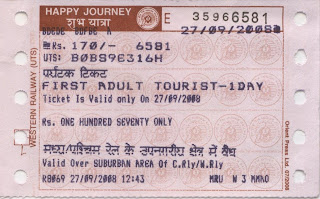

Enter 'Tourist Pass'. Yes! Western Railway has introduced a day Tourist Pass for tourists and people of Mumbai, who just love the city! And a First Class, Unlimited Day pass is available at a dirt cheap INR 170! Yes... can you believe that? Travel throughout the Western line, in your day pass... Enjoy the awesome bandra evenings at Bandstand, or the Churchgate rush hours in the morning... Visit the Dadar market or the over crowded Andheri, or just simply, travel from Churchgate to Virar, in first class. All this for only 170 bucks! Is that not cool?

Tuesday, April 28, 2009

O&M creates ‘ZooZoos’ for Vodafone

If you are following IPL 2 on Set Max, you probably have come across 8 to 10 unique Vodafone commercials. These commercials are just so funny! Indeed, O&M has created some fantastic commercials for Vodafone... whether it was the cute li'l pug running after his buddy or these cute li'l new Zoozoo's!

Wednesday, April 8, 2009

Google Easter Egg

If you want to see some cool Google Easter Egg, check this link [Google Maps]. Once there, make sure you are in StreetView. Navigate the streets and see the entire Google team! The entire Google Team, nerds, geeks standing right next to Googleplex. It is just so awesome! This was when the Google StreetView went live. Indeed, what an awesome feature! I just love and respect this company a lot!

Tuesday, March 10, 2009

Change Display Font Size on Lotus Notes

I always liked smaller display fonts on my applications... but ever tried to change the font size on your Lotus Notes? Well, you can change the font, but not the font size! Is that not funny? IBM guys, hope you read my blog ;-)

By the way, if you want to reduce the font size... do this...
Under the \Notes directory, you will find a file 'notes.ini'. Edit that file and put the following entry to change the font size:
....
EnableJavaApplets=1
EnablePlugins=1
...
Display_Font_Adjustment=1

The one in BOLD above is the entry you need to put to adjust your font size. Higher the number, bigger the font. You can also go in negative to reduce it further. e.g. I love the Georgia font, really small i.e. about 8pt. The above numbers are in pixels (I guess), so go as low as -1 or -2 to have a really small display!

Friday, March 6, 2009

Retrieve BLOB column in Sybase

In one of my recent projects, I was expected to explain something to client, which involved retrieving binary large object data from Sybase! So, you might think, what was the big challenge in this? It's BLOB! Just use the JDBC API and call the getBlob() method of the ResultSet!

Yeps, so, why don't you try that? Give it a try. I used the jconn3 driver to connect to my Sybase database. Driver Class being 'com.sybase.jdbc3.jdbc.SybDriver'. The moment you try to call the getBlob() method, you will get a nice exception stack trace, informing you that this is an unsupported operation! Yeps, its not as straight forward as that!

But don't worry, it actually is even more simple! For fetching the BLOB data all you need to do is:

// build a byte array
byte stuff[] = resultSet.getBytes();

// check the size of the data now
System.out.println("BLOB Size: " + stuff.length);

Congratulations! You have retrieved the BLOB data from a Sybase IMAGE column!!!

Saturday, September 6, 2008

Norton 360, Post Uninstall Internet Problems?

I was always a big fan of Eset NOD32 and Kaspersky Antivirus systems. However, ever since NOD32 released their 3.x version, I've not seen any good cracks on the Internet for the same. So, here I was... with a rather vulnerable Windows Vista Ultimate OS and no antivirus! I some how managed to get hands on Norton Antivirus/ Norton 360.

As some days passed, some genius people managed to find a working crack for my favourite antivirus systems and I happily uninstalled Norton 360. I tried evaluating both the antivirus softwares... i.e. Eset NOD32 3.x and Kaspersky. Post installation, I faced the same problem for both the systems. My Internet refused to work! I mean, my Internet was working, my browsers refused to work or for that matter, any connections from any ports. I wondered what was causing this problem, and eventually realised that McAfee and Norton, have certain annoying uninstallation tools, to completely uninstall their respective products. I remember of having faced this problem with McAfee, and Norton was no exception to this silly thing either!

So if any of you people, who have faced such a weird problem, your answer to all your misery's is... ftp://ftp.symantec.com/public/english_us_canada/removal_tools/Norton_Removal_Tool.exe and this is only for Norton products. Google a similar removal tool for McAfee if you witness such weird problems!

Tuesday, August 12, 2008

Norton Keygen... how to use it?

How to use the keygen:
  1. Unrar, Burn or mount with Daemon Tools.
  2. DISCONNECT FROM THE INTERNET! THIS IS IMPORTANT!
  3. Run the installer, and run the EDGE keygen located in the Keygen dir.
  4. Copy the Product Key from the keygen to the Norton Setup then press the I Agree button.
  5. Complete installation and finally you will get to the activation, it's important that you are NOT connected to the Internet! Press the Next button.
  6. A message box will come up telling you that you need Internet connectivity to continue, just press the OK Button, and then press the Next button.
  7. You will get to a part where it's trying to connect to the Internet for online activation, after a while it will fail, this is fine, repeat this step again.
  8. After attempting to do online activation two times, it will fail and open a browser window. Before you close the browser window, copy the URL that appears in the address bar. (In my case, the Activation actually failed, so you have to copy the URL instantly...) Paste this URL in the keygen now and press that Generate button!
  9. Bingo, you now have an Activation key generated in the box! (It is typically in an XML format i.e. and so on...
  10. Now copy the Request Code into the Request Code field in the keygen, no dashes or spaces just one long string. Select how many years you want to license the software for, and press the Generate button to get your Unlock Code.
  11. Copy the generated Unlock Code to the Norton activation screen, then press the Next button.
  12. Enjoy a fully unlocked copy, and naturally DO NOT register this software with Norton, you can now reconnect to the Internet.
  13. Contact me if you still are not able to get through!